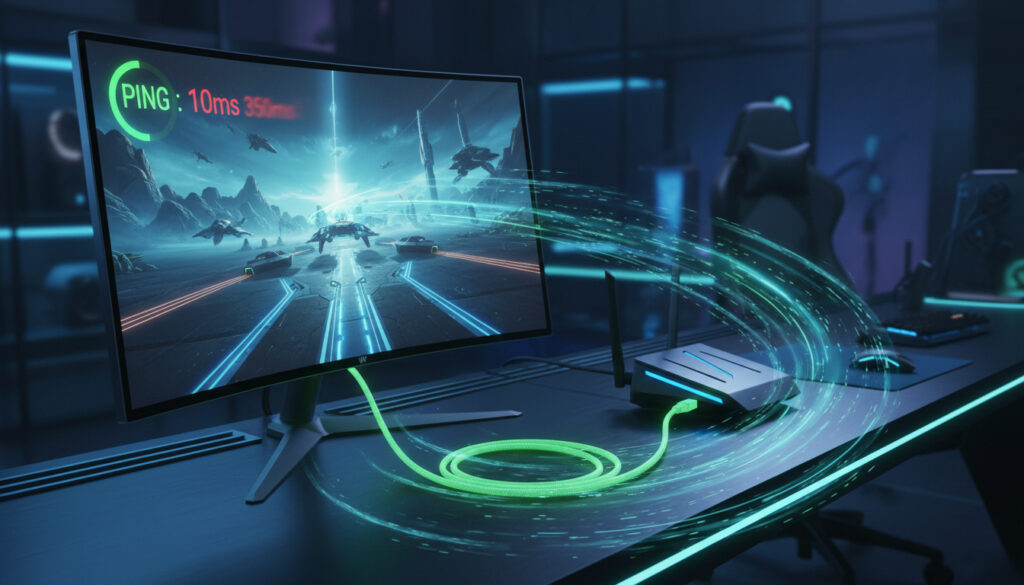
How to Lower Ping in Games – Näin Saat Paremman Peliyhteyden
How to Lower Ping in Games
Every millisecond matters in competitive gaming. When your character freezes during a crucial team fight or your shot registers a full second late, high ping is usually the culprit. Network latency—the time data takes to travel between your device and game servers—determines whether you lead the scoreboard or rage-quit in frustration.
While internet speed grabs headlines, latency often proves more critical than bandwidth for online gaming. A 100 Mbps connection with 150ms ping performs worse for competitive play than a 10 Mbps line with 20ms latency. Understanding how to minimize this delay requires examining hardware, software, and routing decisions that shape your connection quality.
Immediate Optimizations
- Ethernet over WiFi: Physical cables eliminate wireless interference and reduce latency by 10-30ms immediately.
- Server Selection: Choose game servers geographically closest to your location.
- Background Applications: Close streaming services, downloads, and cloud backups.
- Driver Updates: Network adapter drivers significantly impact packet processing efficiency.
Network Infrastructure Insights
Ping measures round-trip time (RTT) for data packets traveling from your device to the server and back. This journey involves multiple hops through your local router, Internet Service Provider (ISP) infrastructure, backbone networks, and finally the game server’s data center. Each hop introduces minimal delay, but cumulative latency creates the final millisecond count displayed in-game.
Many gamers mistakenly prioritize download speed over stability. While 25 Mbps suffices for 4K streaming, online gaming requires consistent, low-latency packet transmission rather than raw throughput. NVIDIA’s optimization research indicates that optimizing packet priority often yields better results than upgrading bandwidth beyond 50 Mbps.
Connection Type Comparison
| Connection Method | Average Latency | Stability | Best Use Case |
|---|---|---|---|
| Fiber Optic (Ethernet) | 5-15ms | Excellent | Competitive esports |
| Cable Internet (Ethernet) | 15-30ms | Good | Fast-paced FPS games |
| 5G Home Internet | 20-40ms | Moderate | Casual multiplayer |
| WiFi 6 (802.11ax) | 20-50ms | Variable | Strategy games, MMOs |
| Powerline Adapters | 30-80ms | Poor to Moderate | Single-player with online features |
Detailed Optimization Steps
Switching to a wired connection represents the single most effective improvement. Microsoft’s networking guidelines confirm that Ethernet eliminates the interference and signal degradation inherent in wireless transmission. If drilling holes for cables isn’t feasible, flat Ethernet cables slip under door frames without permanent installation.
Quality of Service (QoS) settings on modern routers allow you to prioritize gaming traffic over household streaming. Access your router’s administration panel (typically 192.168.1.1) and enable Gaming Mode or manually prioritize your console’s MAC address. This prevents Netflix or video calls from stealing bandwidth during critical gaming moments.
Changing your DNS server occasionally reduces routing inefficiencies. Default ISP DNS servers often route traffic through congested pathways. Cloudflare’s DNS infrastructure demonstrates how optimized name resolution can shave milliseconds off initial connection times, particularly when matchmaking across regional servers.
Disable Windows Update Delivery Optimization and Steam’s background downloads, which consume bandwidth even when games appear idle. Steam’s download settings allow you to throttle bandwidth during specific hours, preventing automatic updates from spiking your latency during evening gaming sessions.
Implementation Timeline
Immediate (0-5 minutes): Connect via Ethernet cable, close browser tabs and streaming applications, restart your router to clear buffer bloat, and select the nearest server in your game’s settings.
Short-term (Today): Update network drivers, configure router QoS settings, change DNS servers to 1.1.1.1 or 8.8.8.8, and scan for malware that might be consuming bandwidth.
Long-term (This month): Contact your ISP about latency issues, consider upgrading to fiber if available, or invest in a gaming router with superior packet management.
Common Misconceptions
Many players believe VPNs universally reduce ping. While Riot Games’ technical support notes that VPNs occasionally improve routing through better peering agreements, they typically add 5-15ms of encryption overhead. VPNs help only when your ISP throttles gaming traffic or routes through particularly inefficient paths.
Bandwidth misconceptions persist despite FCC broadband guidelines clarifying that online gaming requires only 3-4 Mbps of bandwidth. Upgrading from 100 Mbps to 1 Gbps rarely improves latency unless your previous connection suffered from congestion due to multiple simultaneous users.
WiFi 6E and mesh networks improve coverage but cannot match the consistency of Ethernet. Wireless signals face interference from microwaves, baby monitors, and neighboring networks, creating micro-stutters invisible to speed tests but devastating in competitive scenarios.
Hardware vs. Infrastructure Analysis
Determining whether your lag stems from local hardware or ISP infrastructure requires systematic testing. Ping your router (typically 192.168.1.1) to establish baseline local latency—anything above 5ms suggests WiFi interference or router processing issues. Next, ping a public DNS server (8.8.8.8) to measure ISP routing efficiency.
If local ping remains low but game servers remain sluggish, the bottleneck likely resides in your ISP’s peering agreements or the game publisher’s server load. Upgrading your gaming PC cannot resolve issues beyond your local network, just as replacing your router cannot fix ISP-level congestion.
Professional Perspectives
“We see players upgrade their graphics cards twice a year but still play on WiFi with buffers eating their reaction time. Ethernet cables cost ten dollars and improve performance more than a $500 GPU upgrade when it comes to competitive integrity.”
— Network Engineer, Esports Tournament Organizer
“The difference between 20ms and 60ms ping isn’t just numbers—you can feel it in hit registration. When we switched the team to wired connections, our win rate in scrims increased immediately, not because we got better mechanically, but because our inputs actually registered first.”
— Professional FPS Player
Key Takeaways
Lowering ping requires addressing physical connections before software tweaks. Start with Ethernet cables, optimize router placement and settings, then progress to DNS changes and ISP negotiations. Monitor your latency using in-game overlays rather than generic speed tests, as these reflect real-world gaming conditions more accurately.
Consistency matters more than achieving record-low latency spikes. A stable 30ms connection outperforms one fluctuating between 10ms and 80ms. Regular network maintenance ensures your competitive edge remains sharp regardless of game updates or household bandwidth demands.
Frequently Asked Questions
Does WiFi 6 reduce ping significantly compared to WiFi 5?
WiFi 6 (802.11ax) reduces latency by approximately 30-40% compared to WiFi 5 under ideal conditions, primarily through Orthogonal Frequency Division Multiple Access (OFDMA) technology that schedules transmissions more efficiently. However, Ethernet still maintains a 5-10ms advantage over even optimized WiFi 6 due to the absence of wireless interference and encryption overhead.
Can a VPN actually improve my gaming ping?
Occasionally. If your ISP routes gaming traffic through congested peering points or throttles specific game protocols, a VPN with superior routing can bypass these bottlenecks. However, VPN encryption typically adds 5-15ms of latency, making them detrimental for connections already optimized by the ISP. Test ping to your game’s server both with and without the VPN during peak hours to determine actual impact.
What ping is considered acceptable for competitive gaming?
Under 20ms provides optimal competitive performance for first-person shooters and fighting games. Between 20-50ms remains playable for most titles but may disadvantage you in split-second duels. Above 100ms, noticeable delay affects gameplay mechanics, while 150ms+ makes competitive ranked play inadvisable for fast-twitch genres. Strategy games and turn-based RPGs tolerate higher latency, often remaining playable up to 200ms.
Why does my ping spike when family members use the internet?
Buffer bloat occurs when routers incorrectly prioritize data queues, causing gaming packets to wait behind large file downloads or 4K video streams. Enable Quality of Service (QoS) settings on your router to prioritize gaming traffic, or implement Smart Queue Management (SQM) if your router supports it. Upgrading to a router with better traffic shaping capabilities often resolves household contention issues better than increasing bandwidth.
Should I use a gaming NIC (Network Interface Card) for lower ping?
For most consumers, modern motherboard-integrated Ethernet chips provide sufficient performance, adding less than 1ms of processing latency. Dedicated gaming NICs offer marginal improvements primarily through traffic prioritization software that can be replicated via Windows QoS settings or router configuration. The investment only becomes worthwhile for professional streamers requiring hardware-level packet inspection or users with outdated integrated networking hardware.
Lisaa liittyvia artikkeleita
 Terapiaa ja tunnetta – ruotsalainen komedia suomalaisella twistillä
 Asuntolainan korko liikkeessä – mitä se tarkoittaa kuluttajan kannalta nyt?
 Tuttio Soleil 01 – Edullinen sähkömoottoripyörä maastoon
 Sokos Hotel Tahko – Uudistettu hotelli Tahkon keskustassa
 Foreca Jakobstad 10 Dygn – Tarkka Sääennuste Pietarsaaressa
 JD Sports myymälät – sijainnit, aukioloajat ja palvelut Suomessa
 Valentino Born in Roma – tuoksu, versiot ja vertailu